Get started
Quickstart
Connect RollSummary to your AI app in a couple of minutes: copy one URL, add it to the app, sign in and choose Allow.
You need a RollSummary account with at least one campaign, and an AI app that supports custom connectors.
Copy the connector URL
Every AI app uses the same address:
Connector URL
https://api.rollsummary.com/mcpAdd it to your AI app
Pick your app. Each one has a full guide with every click.
Open Customize, then Connectors, choose Add custom connector, paste the URL and click Add, then Connect.
Run
claude mcp addwith the URL in your terminal, then open/mcpin Claude Code and choose Authenticate.Turn on Developer mode, then create a connector under Settings, then Apps & Connectors with the URL and OAuth sign-in.
Add a remote MCP server with the URL. Cursor and VS Code take a few lines of config.
Sign in and choose Allow
Your AI app opens RollSummary in your browser. Sign in, and you see a consent screen that tells you:
- Which app is asking for access
- Where you go back to once you choose
- Which RollSummary account you are signed in with
- What the app will be able to read, and what it can't do
Choose Allow and you land back in your AI app, connected. Signed in with the wrong account? Choose Use a different account first.
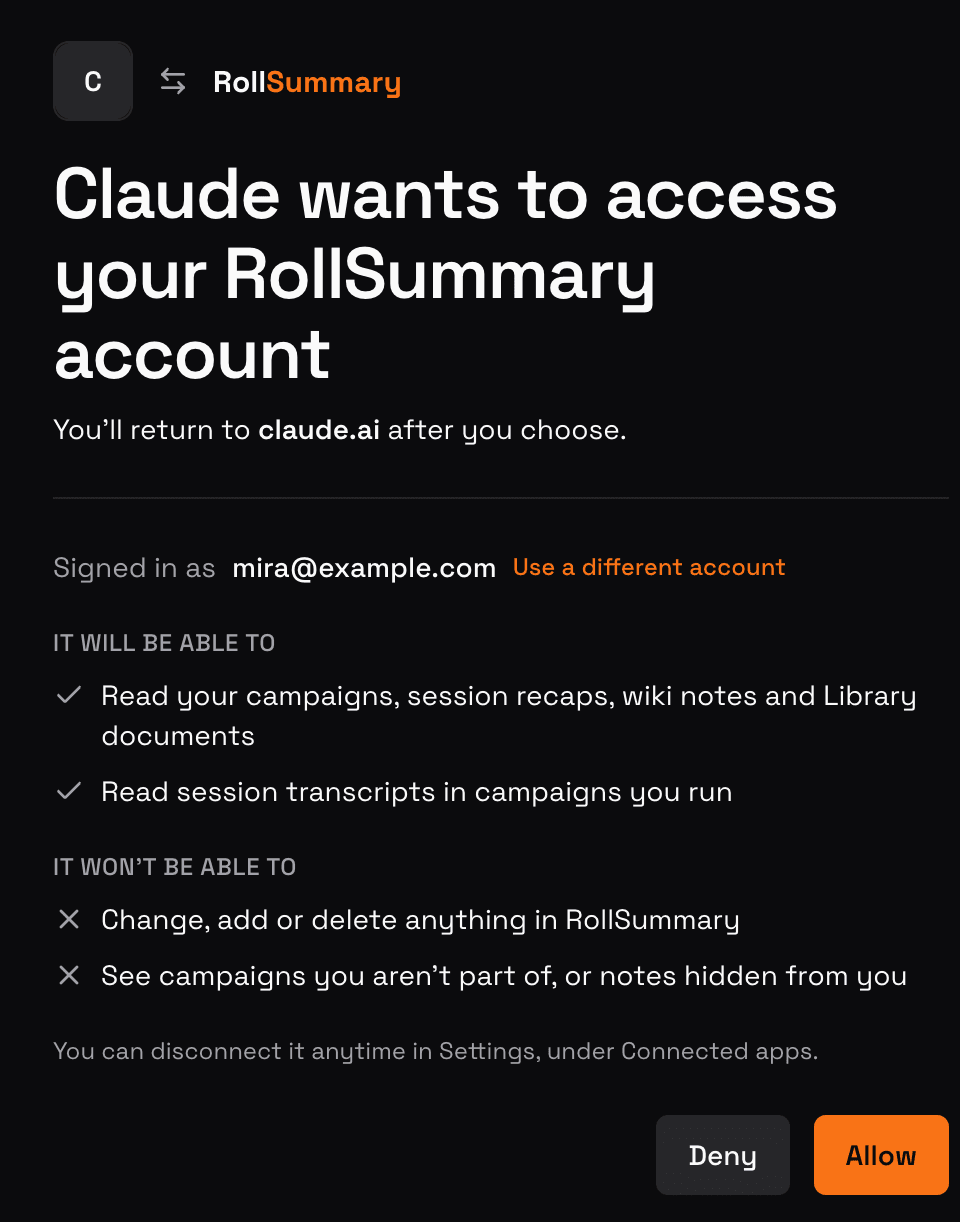
The RollSummary consent screen when you connect Claude. Ask your first question
Start a new chat and name your campaign or RollSummary, for example:
- “What happened in our last RollSummary session?”
- “Who is Ireena, according to my campaign notes?”